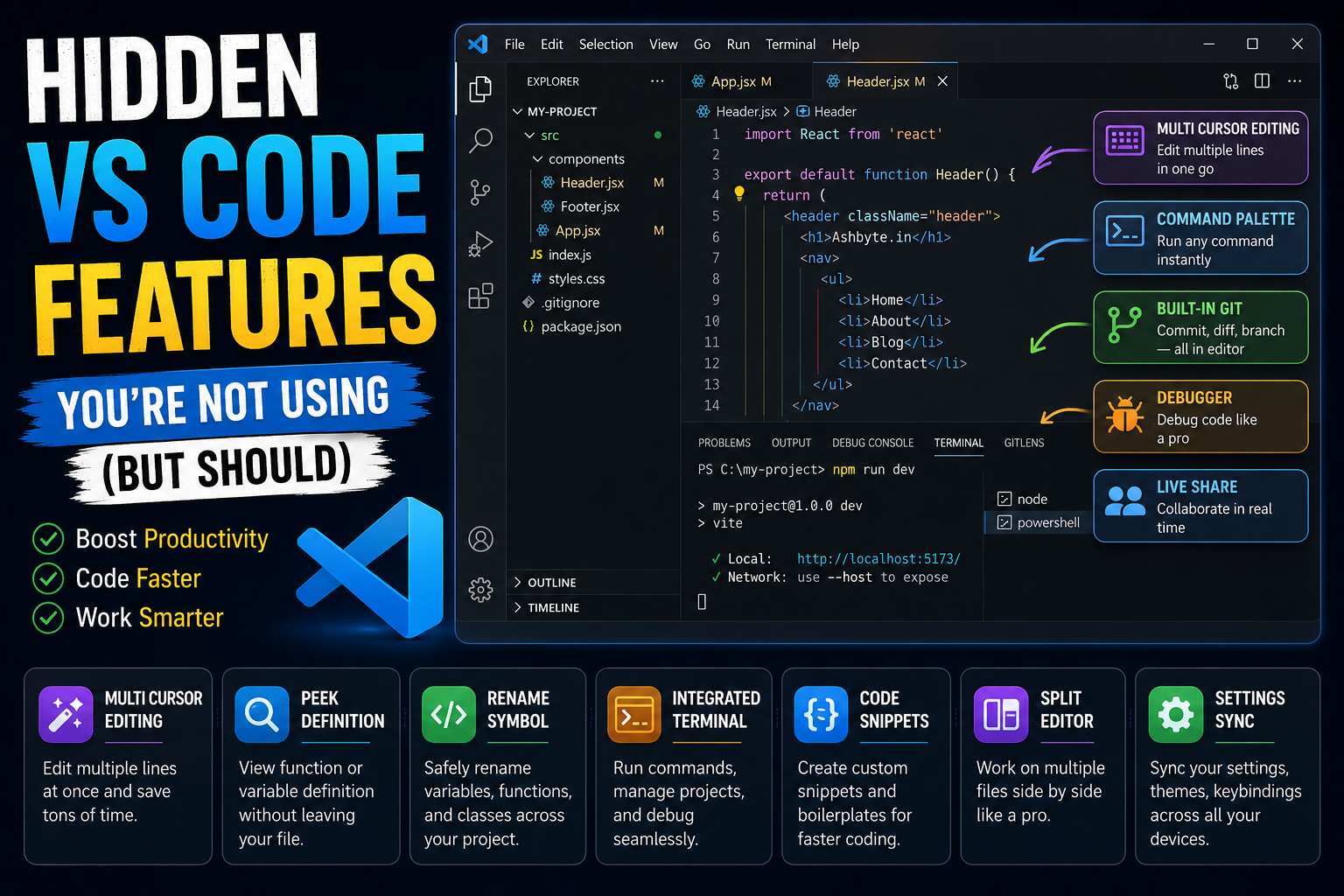
If you use Visual Studio Code daily, there’s a very high chance you’re only using like… 30% of its actual power.
Seriously.
Most developers:
- install VS Code
- add a dark theme
- install a few extensions
- start coding
And that’s it.
I was the same for a long time.
I used VS Code almost like a simple text editor. Meanwhile, hidden inside it were features that could literally save hours every week.
The funny part?
Some of these features are so useful that after using them once, you genuinely wonder:
“Wait… how was I coding without this?”
In this article, I’m not going to repeat the same boring “Top 5 VS Code extensions” list you’ve already seen 500 times.
Instead, I’ll show you hidden VS Code features most developers ignore, including:
- productivity tricks
- hidden shortcuts
- debugging tools
- editing superpowers
- built-in features
- real workflow improvements
And I’ll explain them practically — like one developer sharing things he learned the hard way.
Let’s start.
Why VS Code Became So Popular
Before jumping into hidden features, it’s important to understand why developers love VS Code so much.
Because honestly, it’s not just about extensions.
VS Code sits in this sweet spot:
- lightweight enough for beginners
- powerful enough for professionals
Whether you’re:
- frontend developer
- backend engineer
- AI/ML developer
- DevOps learner
- startup founder coding at 2 AM
VS Code somehow fits everywhere.
That flexibility is its real strength.
My Experience With VS Code
I still remember when I shifted from old-school editors to VS Code.
Initially I used it very basically:
- file explorer
- syntax highlighting
- terminal
That’s all.
But over time, especially while working on startup projects and debugging messy backend code, I slowly discovered features hidden inside VS Code that changed my workflow completely.
Some saved time.
Some reduced frustration.
And some honestly made coding fun again.
The biggest realization was:
VS Code is less about “editing code” and more about building an efficient coding environment.
That mindset changes everything.
1. Multi-Cursor Editing (Absolute Superpower)
This feature alone feels illegal sometimes.
You can edit multiple lines simultaneously.
Example
Suppose you have:
const user1 = "Ashish";
const user2 = "Rahul";
const user3 = "Aman";
Now imagine renaming all variables manually.
Painful.
Instead:
- Hold
Alt - Click multiple places
Now you have multiple cursors.
Edit everything together.
Mind blown.
Why This Is So Useful
I use this constantly for:
- repetitive edits
- API renaming
- JSON cleanup
- HTML attribute updates
Once your brain adapts to multi-cursor editing, normal editing feels slow.
2. Command Palette (The Hidden Brain of VS Code)
Press:
Ctrl + Shift + PThis opens:
Command Palette
Honestly, this is one of the most underrated features.
You can:
- change settings
- open hidden tools
- restart TypeScript server
- format code
- switch themes
- run commands
without touching menus.
Think of it like:
VS Code’s universal control center.
3. Peek Definition Instead of Opening Files
This one massively improves focus.
Normally:
- click function
- new file opens
- brain gets distracted
Instead use:
Alt + F12Now function definition opens inline.
Tiny feature…
huge productivity boost.
Especially in large codebases.
4. Built-In Git Integration
A lot of beginners still use separate Git GUIs unnecessarily.
VS Code already provides:
- commits
- diffs
- branch switching
- merge conflict handling
- staging
directly inside editor.
Very underrated.
What I Learned About Git Inside VS Code
Initially I ignored built-in Git tools because:
“Real developers use terminal only.”
Later I realized:
- using both together is smarter.
Terminal for power.
VS Code UI for visualization.
Best combination honestly.
5. Rename Symbol (Way Better Than Find & Replace)
This feature is magic for refactoring.
Shortcut:
F2Suppose you rename:
JavaScript:
userDataVS Code intelligently updates related references.
Unlike dangerous blind find-and-replace.
Especially useful in:
- TypeScript
- React
- Node.js projects
6. Zen Mode (Underrated for Deep Work)
Sometimes coding feels noisy:
- sidebar
- tabs
- notifications
- terminal clutter
Zen Mode removes distractions.
Shortcut:
Ctrl + K ZClean coding environment.
Perfect for:
- debugging
- deep focus
- writing logic-heavy code
I use this more than expected.
7. Live Share (Feels Like Google Docs for Coding)
This feature is insanely cool.
Using:
- Visual Studio Code Live Share
you can:
- collaborate live
- debug together
- edit simultaneously
without screen sharing.
It genuinely feels futuristic.
Especially useful for:
- team projects
- mentoring
- pair programming
8. Integrated Terminal (Massive Workflow Upgrade)
This changed my workflow heavily.
Instead of constantly switching:
- editor ↔ terminal
VS Code integrates both.
Now you can:
- run backend
- execute Git commands
- install packages
- monitor logs
inside same workspace.
Small improvement…
huge mental comfort.
9. Search Across Entire Project
This feature becomes life-saving in large projects.
Shortcut:
Ctrl + Shift + FSearch entire codebase instantly.
You can:
- locate APIs
- debug references
- find variables
- clean dead code
Honestly impossible to survive big projects without this.
10. File Breadcrumbs (Tiny But Helpful)
At top of VS Code, breadcrumbs show:
- folder structure
- current file location
- functions/classes
Looks small…
but navigation becomes smoother.
Especially in nested projects.
11. Emmet Shortcuts (Frontend Developers Know This Magic)
If you write HTML/CSS manually…
learn Emmet immediately.
Example:
HTML:
ul>li*5Press Tab.
Instantly becomes:
Feels like cheating.
12. Built-In Debugger (Most Beginners Ignore It)
Huge mistake.
Many beginners still debug using:
console.log("hello");everywhere.
VS Code debugger is MUCH more powerful.
You can:
- pause execution
- inspect variables
- track call stacks
- analyze logic step-by-step
Once you properly learn debugging, coding confidence increases massively.
My Biggest Debugging Mistake
I avoided debugger for months because it looked “too advanced.”
Bad decision.
Once I started using breakpoints properly, debugging became way less frustrating.
I realized:
professional debugging is about visibility, not guessing.
13. Extensions Profiles (Super Useful)
You can create different VS Code setups for:
- frontend
- backend
- AI/ML
- competitive programming
Different extensions.
Different settings.
Keeps environment clean.
Most people don’t even know this exists.
14. Sticky Scroll (Small Feature, Big Impact)
When reading large files, sticky scroll keeps:
- current function/class headers visible
This improves navigation surprisingly well.
Especially useful in:
- React components
- backend controllers
- large utility files
15. Timeline Feature
This feature is hidden gold.
VS Code tracks:
- file history
- Git changes
- local modifications
Sometimes it literally saves accidentally deleted work.
Saved me multiple times honestly.
16. Auto Save + Format On Save
This combination feels amazing.
Every time you save:
- formatting automatically fixes code style
Especially useful with:
- Prettier
- ESLint
Your codebase stays cleaner automatically.
17. Workspace Settings
Different projects need different settings.
Example:
- tabs
- formatting
- linters
- TypeScript config
Workspace settings let projects maintain their own environment.
Very useful for teams.
18. Code Snippets (Massive Time Saver)
You can create reusable snippets.
Example:
Typing:
clgcan generate:
console.log();Or entire React components.
Huge productivity boost.
19. Split Editor Like a Pro
You can open:
- frontend
- backend
- docs
- terminal
side by side.
This improves multitasking massively.
Especially during API integration.
20. Remote Development (Feels Insane First Time)
VS Code allows:
- SSH development
- Docker development
- WSL integration
Meaning:
you can code directly inside remote environments.
When I first used remote development properly, it genuinely felt futuristic.
Mistakes I Made Using VS Code
I made MANY.
1. Installing Too Many Extensions
Huge beginner mistake.
VS Code became slow and messy.
Now I keep only necessary extensions.
2. Ignoring Shortcuts
Mouse-heavy workflow slows coding massively.
Keyboard shortcuts matter more than people realize.
3. Never Learning Debugger
Delayed my backend learning badly.
4. Not Customizing Settings
Default setup isn’t always ideal.
Small tweaks improve experience heavily.
5. Treating VS Code Like Simple Editor
VS Code is basically:
a complete development environment.
Understanding that changes everything.
What I Learned Over Time
One important thing I realized:
Great developers aren’t only faster because they “know more coding.”
They also:
- optimize workflows
- reduce friction
- master tools
VS Code becomes insanely powerful once it adapts to YOUR workflow.
That’s the real goal.
Real Advice for Beginners
Don’t try learning 100 VS Code tricks in one day.
Bad idea.
Instead:
- learn one feature
- use it daily
- let it become habit
Then move to next.
That gradual improvement compounds heavily over time.
Best VS Code Extensions I Personally Find Useful
Not generic hype list.
Just practical ones.
- Prettier
- ESLint
- GitLens
- Live Server
- Thunder Client
- Error Lens
These genuinely improved my workflow.
Why Developers Love VS Code So Much
Because it balances:
- simplicity
- flexibility
- performance
- ecosystem
better than most editors.
It grows with you.
Beginner?
Works great.
Advanced developer?
Still works great.
That’s rare.
My Thoughts
Most developers use VS Code every day…
but barely scratch the surface of what it can actually do.
And honestly, discovering hidden productivity features feels surprisingly satisfying because tiny improvements compound massively over months and years.
The goal isn’t:
“Become shortcut ninja.”
The goal is:
- less friction
- smoother workflow
- better focus
- faster debugging
- cleaner coding experience
And once VS Code starts adapting to your workflow instead of the other way around…
coding genuinely becomes more enjoyable.
