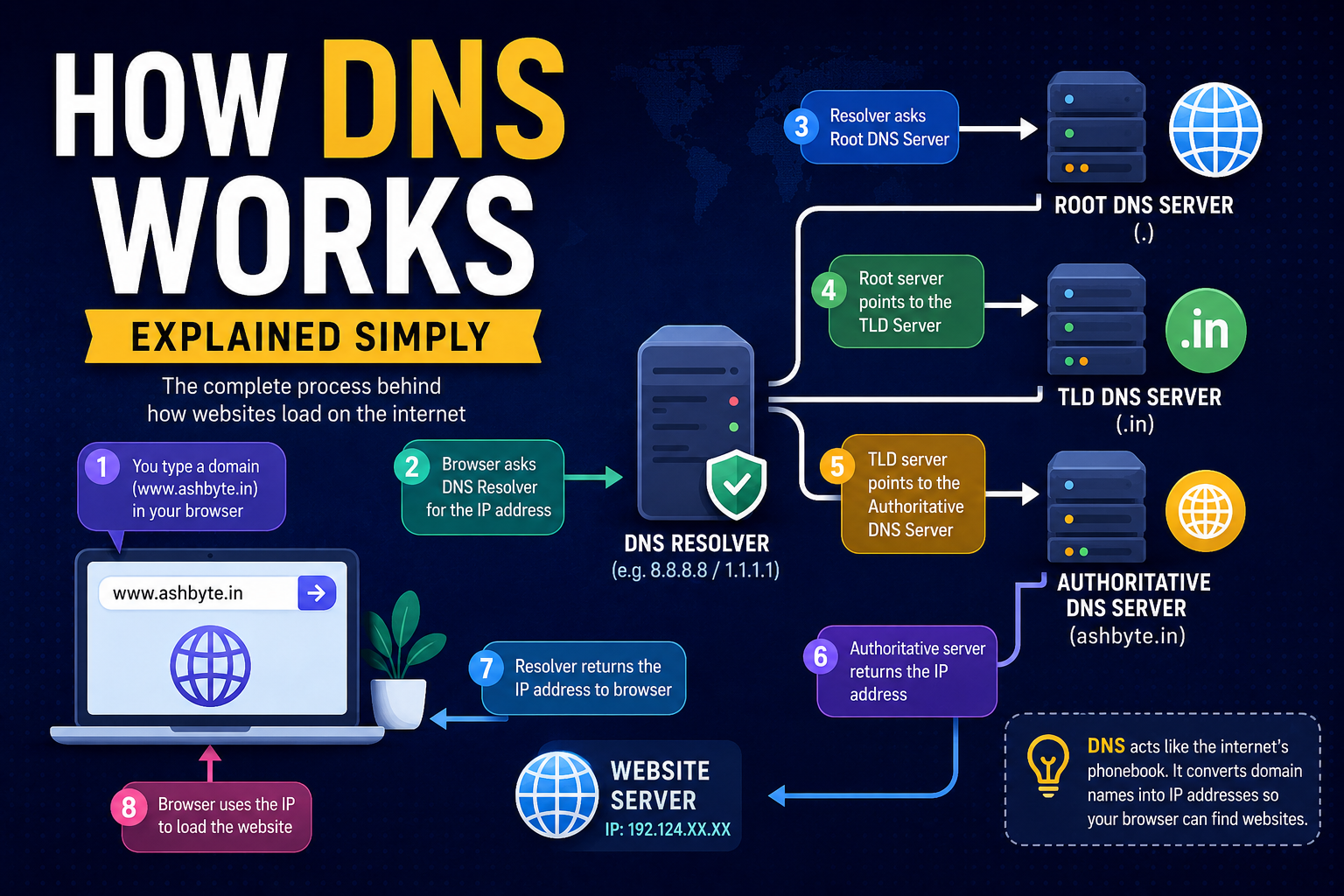
You type a website name like:
google.com
and within seconds, the website opens.
Simple, right?
But have you ever wondered what actually happens in the background?
Like… how does your browser know where Google’s server is located?
How does it find the correct website among billions of devices connected to the internet?
That invisible system is called DNS.
And honestly, when I first heard the term “DNS,” I thought it was some super technical networking thing only server engineers understood.
But once I finally understood it practically, everything about websites, hosting, domains, and servers started making way more sense.
In this article, I’ll explain how DNS works deeply but in very simple language — no boring textbook explanations, no robotic definitions.
Just real understanding.
By the end, you’ll know:
- What DNS actually is
- How websites load
- What happens when you type a domain
- DNS records explained simply
- Real examples
- Beginner mistakes
- DNS propagation
- Why websites sometimes break
- My personal experience dealing with DNS chaos
Let’s start from the very beginning.
What Is DNS?
DNS stands for:
Domain Name System
But that definition alone doesn’t really help beginners.
So let’s make it practical.
DNS is basically:
The internet’s phonebook.
That’s the simplest explanation.
Humans remember names easily.
For example:
- google.com
- youtube.com
- ashbyte.in
But computers and servers communicate using IP addresses like:
- 142.250.193.78
- 192.168.0.1
DNS converts human-friendly names into machine-friendly IP addresses.
That’s its entire job.
Why DNS Exists
Imagine if DNS didn’t exist.
You’d have to remember:
- Facebook IP
- YouTube IP
- Instagram IP
- Every single website IP
Impossible.
Instead, DNS lets us use easy names.
So when you type:
youtube.com
DNS says:
“Okay, I know where this website lives.”
and then connects you to the correct server.
The Simplest Real-Life Example
This analogy helped me understand DNS years ago.
Imagine your phone.
You save your friend’s number as:
Rahul
You don’t remember the actual number.
Your phone translates:
- Rahul → Actual phone number
DNS works exactly the same way.
It translates:
- Domain name → Server IP address
That’s it.
Simple.
What Happens When You Open a Website?
Now let’s go deep.
This is the real magic.
Suppose you type:
www.ashbyte.in
into your browser.
Here’s what actually happens behind the scenes.
Step 1: Browser Checks Cache
Before asking the internet, your browser first checks:
“Do I already know this website’s IP address?”
Browsers temporarily store DNS data in cache.
This makes websites load faster.
If IP exists in cache:
- Website opens instantly
If not:
- Browser moves to next step
Step 2: Operating System Checks DNS Cache
Now your computer checks its own DNS cache.
Your operating system may already know the IP.
Again:
- Faster response
- Less internet requests
Step 3: Request Goes to DNS Resolver
If IP still isn’t found, request goes to a DNS Resolver.
Usually provided by:
- Internet provider
- Google DNS
- Cloudflare DNS
Examples:
- 8.8.8.8 → Google DNS
- 1.1.1.1 → Cloudflare DNS
Resolver’s job:
Find the correct IP address.
Step 4: Resolver Contacts Root DNS Servers
Now things get interesting.
The resolver asks the Root DNS Server:
“Where can I find information about
.comdomains?”
Root server responds:
“Ask the
.comTLD server.”
Step 5: Resolver Contacts TLD Server
TLD means:
- Top-Level Domain
Examples:
- .com
- .in
- .org
- .net
Now resolver asks:
“Where is ashbyte.in located?”
TLD server responds:
“Ask the authoritative nameserver.”
Step 6: Resolver Contacts Authoritative DNS Server
This server contains the actual DNS records.
It finally responds:
“ashbyte.in points to IP 145.xx.xx.xx”
Step 7: Browser Connects to Hosting Server
Now browser knows:
- Correct server IP
So it connects to hosting server.
Server sends:
- HTML
- CSS
- Images
- Scripts
And website loads.
All this usually happens within milliseconds.
Crazy, right?
Visualizing the Full DNS Flow
Here’s the complete flow in simple format:
You type:ashbyte.in
↓
Browser cache check
↓
OS cache check
↓
DNS resolver
↓
Root DNS server
↓
TLD server
↓
Authoritative nameserver
↓
IP address returned
↓
Browser connects to server
↓
Website loads
That’s literally how the internet finds websites.
My Experience With DNS Problems
I still remember the first DNS disaster I created.
I had:
- One domain
- One hosting account
- Very high confidence
- Very low knowledge
Worst combination possible.
I changed:
- A records
- Nameservers
- CNAME records
without understanding what they actually did.
Result?
- Website stopped working
- SSL broke
- Emails vanished
- Subdomain failed
And the funniest part?
I kept refreshing the browser every 20 seconds expecting instant fixes.
Later I learned:
DNS changes take time.
Sometimes:
- 5 minutes
- Sometimes 1 hour
- Sometimes even 24–48 hours
That process is called:
DNS Propagation
And beginners panic during this phase.
Including me.
What Is DNS Propagation?
When you change DNS records, the entire internet doesn’t update instantly.
Different servers around the world update gradually.
That delay is called:
- DNS propagation
Think of it like:
Updating a contact number across millions of phonebooks worldwide.
Takes time.
DNS Records Explained Simply
This is where many people get confused.
Let’s simplify everything.
1. A Record
Most important DNS record.
It connects:
- Domain → Server IP
Example:
ashbyte.in → 145.223.xx.xx
Without A record:
- Website won’t open
2. CNAME Record
Alias record.
Example:
www.ashbyte.in → ashbyte.in
Instead of pointing directly to IP, it points to another domain.
3. MX Record
Used for email routing.
If you use:
- Gmail Workspace
- Zoho Mail
- Outlook
MX records matter.
Without correct MX records:
- Emails fail
4. TXT Record
Used for:
- Verification
- Security
- SPF
- DKIM
Google often asks TXT records for verification.
5. NS Record
NS means:
- Nameserver
These tell the internet:
Which DNS servers manage this domain.
Very important when connecting hosting.
What Are Nameservers?
This confused me badly in the beginning.
So let’s simplify it.
When you buy hosting, hosting company gives:
- ns1.example.com
- ns2.example.com
You add these to your domain registrar.
Now your domain says:
“Okay, this hosting company controls my DNS.”
That’s how domain and hosting connect.
Difference Between DNS and Hosting
Beginners often mix these.
Here’s the easiest explanation.
DNS
Works like:
GPS/navigation system
Its job:
- Find correct server
Hosting
Works like:
Actual house/building
Its job:
- Store website files
DNS finds the house.
Hosting contains the website.
Why Websites Sometimes Don’t Open
There can be many DNS-related reasons.
Wrong DNS Records
One typo can break everything.
Expired Domain
Website exists, but domain expired.
DNS Propagation Delay
Changes still updating worldwide.
Hosting Server Down
DNS works fine, server is dead.
Incorrect Nameservers
Domain pointing to wrong DNS provider.
Public DNS Providers
Some DNS providers are faster than others.
Popular options:
Google DNS
- 8.8.8.8
- 8.8.4.4
Cloudflare DNS
- 1.1.1.1
Very popular for speed/privacy.
OpenDNS
Also widely used.
Does DNS Affect Website Speed?
Yes.
Not massively for total page load, but DNS lookup time matters.
Faster DNS:
- Faster connection start
- Better responsiveness
That’s why companies optimize DNS globally.
What I Learned About DNS After Building Websites
Initially, DNS felt terrifying.
Like one wrong click would destroy the internet.
Honestly… sometimes it actually feels that way.
But over time I realized:
- DNS is logical
- Not magical
Once you understand:
- Domain
- Nameservers
- Records
- Propagation
everything becomes manageable.
Most beginners try memorizing settings.
Bad idea.
Understanding the flow is way more important.
Beginner Mistakes I Made
Let me save you from the same headaches.
1. Changing Random DNS Settings
Never edit records blindly after watching random tutorials.
Understand first.
2. Ignoring TTL
TTL means:
- Time To Live
It controls DNS cache duration.
Didn’t understand this initially at all.
3. Forgetting Email Records
One DNS change broke my business email completely.
Always check MX records before changing nameservers.
4. Expecting Instant DNS Updates
Propagation takes time.
Refreshing browser 500 times won’t help.
Trust me.
I tried.
5. Not Keeping Backups of DNS Records
Huge mistake.
Now I always save screenshots before edits.
Real Advice for Beginners
If you want to truly learn DNS:
Don’t just read articles.
Actually do this:
- Buy a domain
- Connect hosting
- Add subdomains
- Configure SSL
- Break DNS intentionally
- Fix it
That practical experience teaches more than 50 tutorials.
DNS in Simple One-Line Explanation
If someone asks you:
“What does DNS do?”
You can simply say:
“DNS converts website names into server IP addresses so browsers can find websites.”
That’s the core idea.
Everything else is built around it.
Why Understanding DNS Makes You a Better Developer
Even frontend developers should understand DNS basics.
Because later you’ll deal with:
- Deployment
- Domains
- SSL
- APIs
- CDN
- Cloud hosting
And DNS becomes unavoidable.
The developers who understand infrastructure usually troubleshoot problems way faster.
Real-World Example
Suppose you launch a startup website.
You:
- Buy domain from Namecheap
- Hosting from Hostinger
- Email from Google Workspace
- CDN from Cloudflare
Now DNS becomes the central controller connecting everything together.
That’s why understanding DNS is such a powerful skill.
My Thoughts
DNS sounds super technical at first.
But honestly?
Its core idea is surprisingly simple.
It’s basically the internet asking:
“Where is this website located?”
and DNS replying with the correct server address.
That’s it.
The deeper you go into development, hosting, cloud servers, or startups, the more valuable this understanding becomes.
And once DNS finally clicks in your brain, a huge part of the internet suddenly starts making sense.
