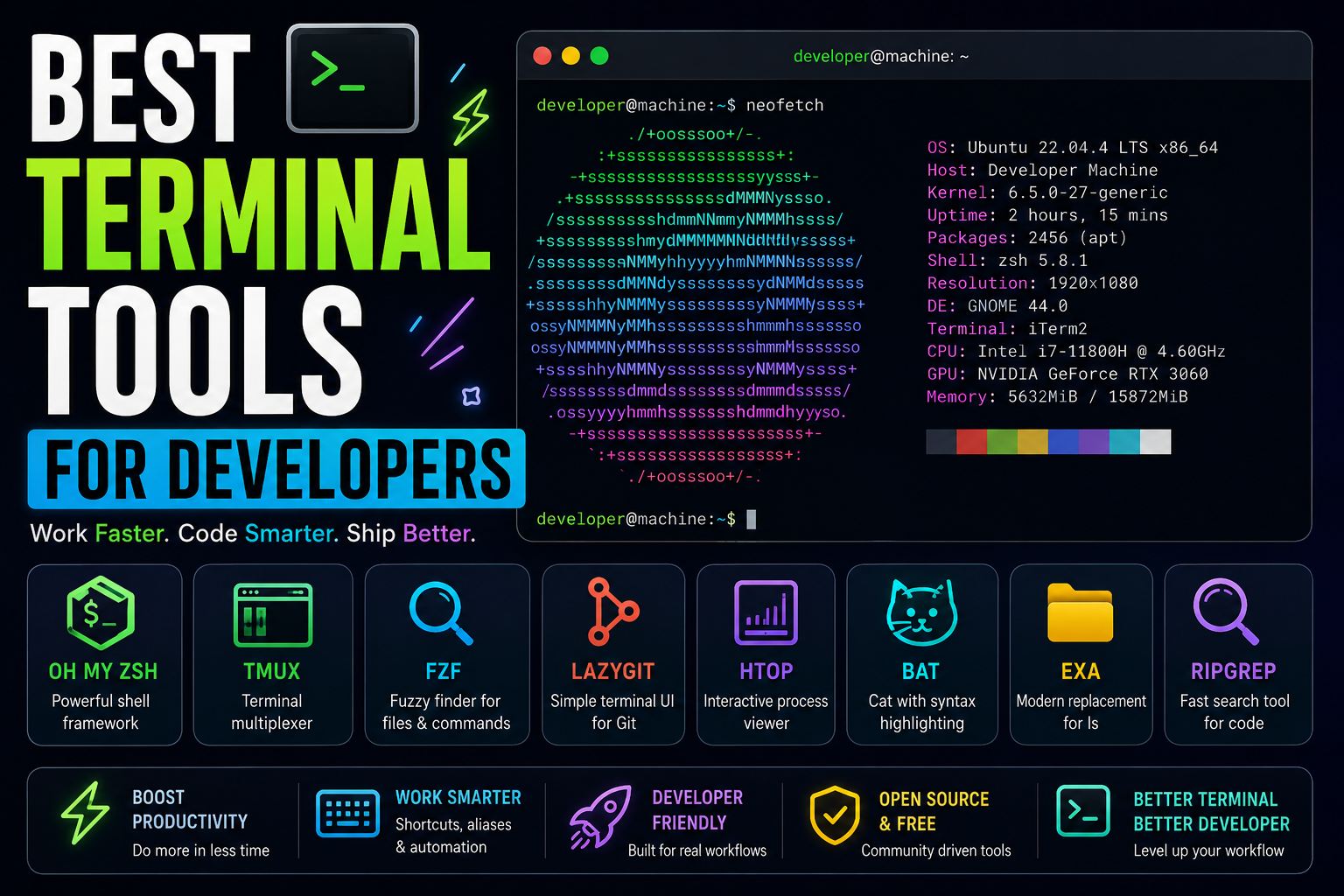
If you’re learning development right now, there’s a very high chance you’ve already opened the terminal… looked at the black screen… typed a few commands nervously… and thought:
“How do people actually work inside this thing all day?”
Honestly, same.
When I first started coding, terminal felt intimidating for no reason.
It looked like:
- hacker movie UI
- complicated Linux wizardry
- something only “real programmers” used
Meanwhile I was doing everything through buttons and graphical interfaces because it felt safer.
But over time, especially while working on backend projects, deployments, startup workflows, and servers, I realized something important:
The terminal is not just a tool. It becomes a developer’s workspace.
And once you customize it properly with the right terminal tools…
everything becomes:
- faster
- cleaner
- smoother
- surprisingly enjoyable
In this article, I’ll explain the best terminal tools for developers, deeply and practically — not random “Top 10 Linux commands” content.
We’ll cover:
- productivity tools
- terminal customization
- Git improvements
- file navigation
- workflow upgrades
- debugging helpers
- startup-friendly tools
- mistakes beginners make
And I’ll explain everything like a real developer sharing experience — not like a textbook.
Let’s start.
Why Developers Love Terminal So Much
This confused me badly initially.
I used to think:
“GUI apps are easier. Why use terminal?”
Then slowly I understood the real advantages.
Terminal gives:
- speed
- automation
- flexibility
- remote access
- scripting power
And once muscle memory develops, terminal workflows become insanely fast.
Especially for:
- backend development
- DevOps
- Git workflows
- server management
- AI/ML
- cloud deployments
My Experience Learning Terminal
Honestly?
Initially I hated it.
I kept forgetting:
- commands
- paths
- syntax
Even simple things felt confusing.
At one point I accidentally deleted files while experimenting with commands and immediately panicked.
Classic beginner experience.
But over time, after using terminal daily, something interesting happened:
it started feeling faster than graphical interfaces.
Now switching back to GUI-heavy workflows sometimes feels slower.
That transition surprised me.
What Makes a Good Terminal Tool?
This matters.
Good terminal tools usually:
- reduce repetitive work
- improve visibility
- simplify navigation
- speed workflows
- feel lightweight
Because terminal productivity is mostly about:
reducing friction.
Tiny improvements compound massively over time.
1. iTerm2 (Mac Users)
If you use macOS, iTerm2 is almost legendary.
Features:
- split panes
- search
- autocomplete
- session restoration
- better customization
Way more powerful than default terminal.
Why Developers Love iTerm2
Because small workflow improvements matter heavily.
Example:
- split multiple terminals
- monitor backend logs
- run frontend server
- SSH into server
all simultaneously.
Very productive.
2. Windows Terminal
Windows terminal experience improved massively in recent years.
Honestly older Windows terminals felt painful.
Now Windows Terminal supports:
- tabs
- customization
- PowerShell
- WSL
- themes
Huge improvement.
My Windows Terminal Realization
When WSL + Windows Terminal became smoother, development on Windows suddenly felt MUCH better.
Before that many developers preferred Linux/macOS heavily for terminal workflows.
3. Oh My Zsh
This tool completely changes terminal experience.
Honestly the first time I installed Oh My Zsh:
terminal suddenly felt modern.
Features:
- themes
- plugins
- autocomplete
- Git helpers
- syntax improvements
Very popular among developers.
Why Oh My Zsh Feels Addictive
Because once terminal becomes:
- colorful
- intelligent
- readable
you genuinely enjoy using it more.
Simple but true.
4. zsh
Zsh itself became hugely popular because it feels smarter than traditional bash in many workflows.
Especially:
- autocomplete
- navigation
- plugin ecosystem
Combined with Oh My Zsh, it becomes very powerful.
5. tmux
This tool feels weird initially…
then eventually feels genius.
tmux allows:
- multiple sessions
- split windows
- persistent terminals
- remote workflows
Extremely useful for:
- backend developers
- server management
- SSH workflows
My First tmux Experience
Honestly?
Initially I thought:
“Why is this so complicated?”
Then I started using remote servers more seriously.
Suddenly tmux became incredibly useful because:
- sessions survive disconnects
- workflows stay organized
Now I understand why advanced developers love it.
6. fzf
This tool feels like terminal superpower.
It allows fuzzy searching for:
- files
- commands
- Git branches
- history
Very fast.
Example:
Instead of manually navigating folders endlessly…
you search instantly.
Huge productivity boost.
Why fzf Is So Powerful
Because developers constantly:
- search files
- repeat commands
- navigate projects
fzf reduces this friction massively.
7. bat
This is basically:
cat command but beautiful.
Features:
- syntax highlighting
- Git integration
- readable output
Tiny improvement…
surprisingly satisfying.
8. exa
exa improves file listing.
Looks cleaner.
More readable.
Better visuals.
Honestly terminal aesthetics affect productivity more than people realize.
9. htop
One of the best terminal monitoring tools.
Shows:
- CPU usage
- RAM usage
- processes
- system activity
Way better than raw process commands.
Especially useful during:
- debugging
- deployments
- server monitoring
Real-World htop Use Case
I once had a backend process randomly consuming huge RAM.
Without htop:
finding issue would’ve been painful.
Visual process monitoring helps a lot.
10. lazygit
This tool became very popular recently.
Git inside terminal can sometimes feel messy.
lazygit provides:
- visual Git interface
- commits
- branches
- merges
- diffs
inside terminal.
Very clean workflow.
Why Developers Love lazygit
Because raw Git commands become overwhelming sometimes.
Especially during:
- merge conflicts
- branch cleanup
- rebasing
lazygit simplifies visibility heavily.
11. ripgrep
Extremely fast searching tool.
Developers use it for:
- searching codebases
- finding variables
- debugging
Massively useful in large projects.
12. neofetch
Okay this one is partially aesthetic.
But developers love it.
Shows:
- OS
- system specs
- terminal info
in beautiful format.
Terminal customization culture is real honestly.
13. Docker CLI
Modern development heavily involves Docker.
Terminal workflows become important for:
- containers
- deployments
- environments
Very valuable skill.
Why Terminal Skills Matter More Over Time
As developers grow, they eventually interact with:
- servers
- CI/CD
- cloud systems
- SSH
- deployments
And terminal becomes unavoidable.
The earlier you get comfortable with it, the easier future workflows become.
Mistakes I Made While Learning Terminal
Definitely many.
1. Memorizing Commands Blindly
Bad approach.
Understanding workflows matters more.
2. Fear of Breaking Things
Initially I avoided experimenting.
Later I realized:
- safe experimentation teaches fastest.
3. Ignoring Shortcuts
Keyboard efficiency matters massively in terminal workflows.
4. Installing Too Many Fancy Tools
At one point my terminal became:
- overloaded
- slow
- cluttered
Simple setups often work better.
5. Copy-Pasting Commands Without Understanding
Dangerous habit.
Especially with:
- sudo
- rm
- permissions
Always understand commands first.
What I Learned About Terminal Productivity
One major realization:
Terminal mastery is less about:
memorizing 500 commands
and more about:
- workflow optimization
- repetition
- comfort
- automation
That’s the real difference between beginners and advanced users.
Best Beginner-Friendly Terminal Setup
If you’re starting today:
Windows
- Windows Terminal
- WSL
- zsh
Mac/Linux
- iTerm2 or native terminal
- Oh My Zsh
- fzf
- bat
- lazygit
Simple.
Practical.
Powerful.
Why Startup Developers Love Terminal
Because startups value:
- speed
- automation
- efficiency
Terminal workflows support all three.
Especially for:
- deployments
- debugging
- cloud infrastructure
- scripting repetitive tasks
Terminal vs GUI Debate
Honestly?
Both matter.
GUI tools are great for:
- visualization
- onboarding
- simplicity
Terminal excels at:
- speed
- automation
- flexibility
Good developers usually combine both intelligently.
Real Advice for Beginners
Don’t try becoming terminal wizard overnight.
Bad idea.
Instead:
- learn commands gradually
- build daily habits
- customize slowly
Over time terminal stops feeling scary.
And eventually…
it becomes one of your favorite developer tools.
The Future of Terminal Tools
Interestingly, terminal tools are becoming:
- smarter
- AI-assisted
- visually improved
Modern terminals now integrate:
- AI suggestions
- autocomplete intelligence
- cloud workflows
- container management
Terminal culture keeps evolving.
Final Thoughts
When I first started development, terminal felt intimidating and unnecessary.
Now honestly?
It feels difficult to imagine serious development workflows without it.
Not because terminal looks “cool”…
but because:
- it speeds workflows
- reduces friction
- improves automation
- gives developers more control
And once your terminal environment becomes personalized to your workflow…
coding genuinely feels smoother and more enjoyable.
That’s the hidden magic most beginners don’t realize initially.
